

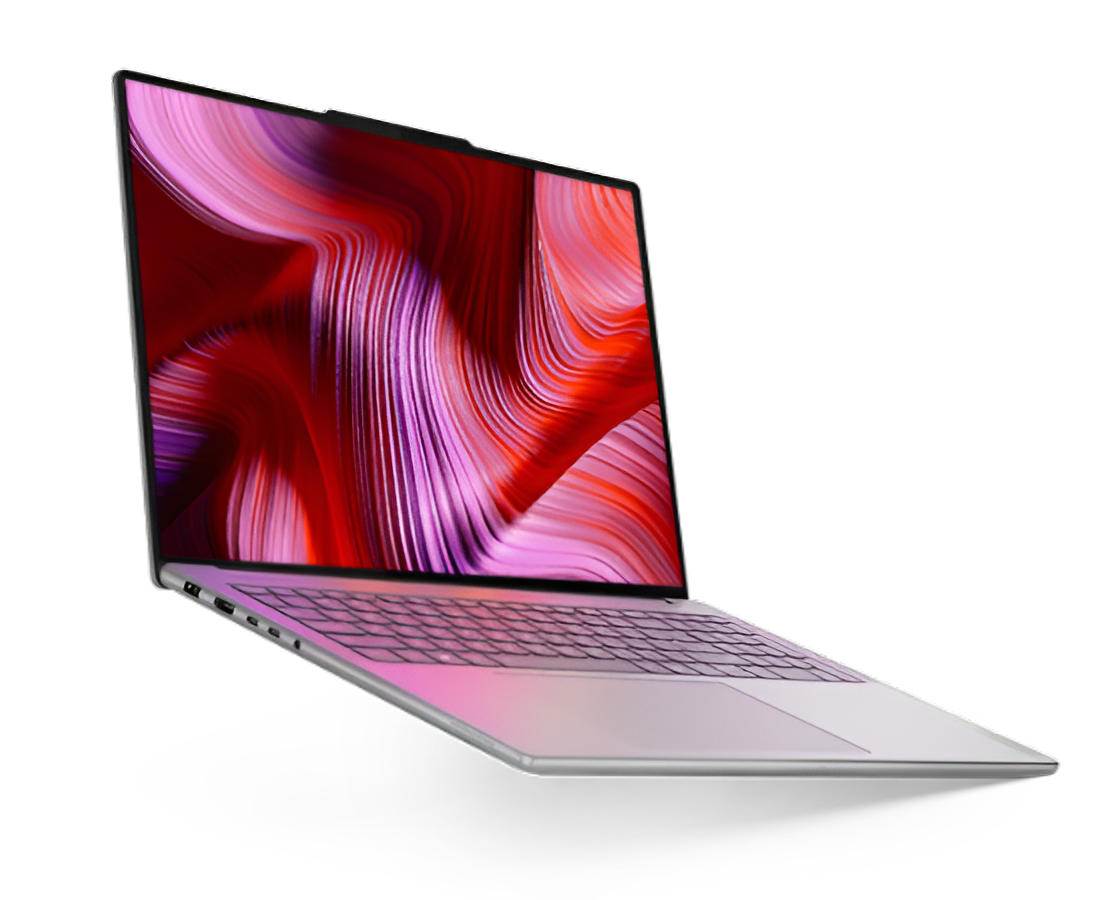
You open your photo editing software and load a RAW file. The screen freezes. The cursor turns into a spinning wheel. You wait and wait. This frustration ends today. RAW photo editing demands serious power from your laptop. These massive files contain all the data your camera sensor captured. Your laptop needs to process millions of pixels every single second.The majority of photographers attribute their problems to hardware and consider buying a new computer as a solution. However, this is not a universal truth. Intelligent optimization can turn your sluggish laptop into an efficient editing tool.
The following six tried and tested changes will not only make your workflow nice and quick but also keep you waiting less and creating beautiful images more.
1. Upgrade Your RAM for Lightning-Fast Performance
Your laptop’s RAM acts like a workspace for editing programs. More workspace means faster editing speed. The best laptop for photo editing needs at least 16GB of RAM to run multiple heavy tools smoothly without slowing your creative flow. Professional editors use 32GB or even 64GB for the best experience. Adding more RAM gives your laptop breathing room.
Why RAM Matters for RAW Editing
Your editing software loads entire RAW files into memory. It keeps multiple versions of your photo ready. The program stores your edit history in RAM, too. When you run out of memory, your laptop starts using the hard drive instead.
Upgrading RAM is one of the easiest laptop improvements you can make. Most laptops have accessible RAM slots. You can add more sticks or replace existing ones with higher capacity modules. Check your laptop’s maximum RAM capacity before buying. The investment pays off immediately with smoother scrolling and faster preview rendering.
2. Switch to an SSD for Instant File Access
Solid State Drives are the new champions of speed. SSDs have no moving parts and read data almost instantly.
Your laptop needs to load RAW files from storage constantly. An HDD takes several seconds to open a single large file. An SSD does the same job in milliseconds. The difference feels like magic.
Benefits of SSD Technology
- Files open three to five times faster than HDDs
- Your editing software launches in seconds instead of minutes
- Saving edited photos takes a fraction of the time
- Your entire system feels more responsive
- Less waiting means more editing and creating
A number of photographers use external hard drives as a means of storing their RAW files and thus cutting costs. However, this method leads to a bottleneck in the entire workflow.. Moving your active project files to an internal SSD makes a massive difference.
External SSDs work well, too if you need portable storage. The speed boost transforms your entire editing experience from start to finish.
With more laptop users moving towards SSDs, the market is skyrocketing. The total market share is expected to surpass $57.8 billion in 2025
3. Optimize Your Editing Software Settings
Default settings that don’t correspond to your laptop’s power are usually present in most photo editing programs. Tweaking these settings leads to hidden performance and better quality. You can make your software work smarter with your available resources.
Cache settings control how much temporary data your software stores. Performance preferences determine how the program uses your hardware. Preview quality settings affect how smooth your editing feels. Taking ten minutes to adjust these options can double your editing speed.
Key Software Settings to Adjust
- Set cache size to 50-70% of available RAM.
- Lower preview quality to standard instead of full resolution.
- Turn off automatic backups during active editing sessions.
- Disable unnecessary panels and features you don’t use.
- Use smart previews instead of editing full-resolution files directly.
Adobe Lightroom and Photoshop both have performance sections in their preferences. Capture One and other programs offer similar optimization options. Reading your software’s manual helps you understand available tweaks.
4. Close Unnecessary Background Programs
Your laptop runs dozens of programs behind the scenes. Each one steals processing power and memory from your editing software. These background apps slow down your RAW editing workflow without you realizing it.
Web browsers with multiple tabs open consume gigabytes of RAM. Messaging apps constantly check for updates. Cloud sync services upload and download files. Music players and video apps use resources too. All these programs compete with your photo editor for attention.
Programs That Drain Performance
- Web browsers with many open tabs.
- Cloud storage services sync files.
- Video conferencing apps running in the background.
- Social media applications.
- Antivirus scans during editing sessions
- Auto-updating software
5. Use Proxy Files and Smart Previews
RAW files from modern cameras are enormous. A single photo can be 50MB or larger. Editing these massive files directly pushes your laptop to its limits. Smart previews and proxy files offer a clever solution.
These smaller versions of your photos look nearly identical on screen. Your editing software works with the lightweight copies instead of the full RAW files. All your adjustments get saved and applied to the original later. This method feels much smoother and faster.
How Proxy Editing Works
Your software creates compressed versions of your RAW files. These proxies are only 5-10% of the original size. You make all your edits on these smaller files. The program applies your changes to the full-resolution RAW when you export. The visual difference is unnoticeable during editing. The speed difference is dramatic.
6. Update Graphics Drivers and Software
Your laptop’s graphics processor handles the visual heavy lifting during RAW editing. Outdated drivers cause glitches and slow performance. Software companies release updates that improve speed and fix bugs. Keeping everything current ensures optimal performance.
Graphics card manufacturers constantly improve their drivers. Each update brings better performance for creative applications. Photo editing software also gets faster with every version. These updates are free and easy to install.
Update Best Practices
- Check for graphics driver updates monthly.
- Enable automatic updates for your editing software.
- Read update notes to learn about performance improvements.
- Restart your laptop after installing major updates.
- Keep your operating system updated, too.
Conclusion
RAW editing doesn’t require the most expensive laptop on the market. Smart optimizations turn average machines into powerful editing workstations. Start with RAM and SSD upgrades for the most significant immediate impact. Adjust your software settings to match your hardware capabilities. Close background programs that steal resources. Use proxy files to edit smoothly without lag. Keep your laptop cool and clean for consistent performance. Update drivers and software regularly for continuous improvements.
These seven optimizations work together to create a dramatically faster workflow. You’ll spend more time being creative and less time watching loading bars. Your photos deserve your full attention. A laptop for photo editing needs some tune-ups to keep up with your artistic vision.
