

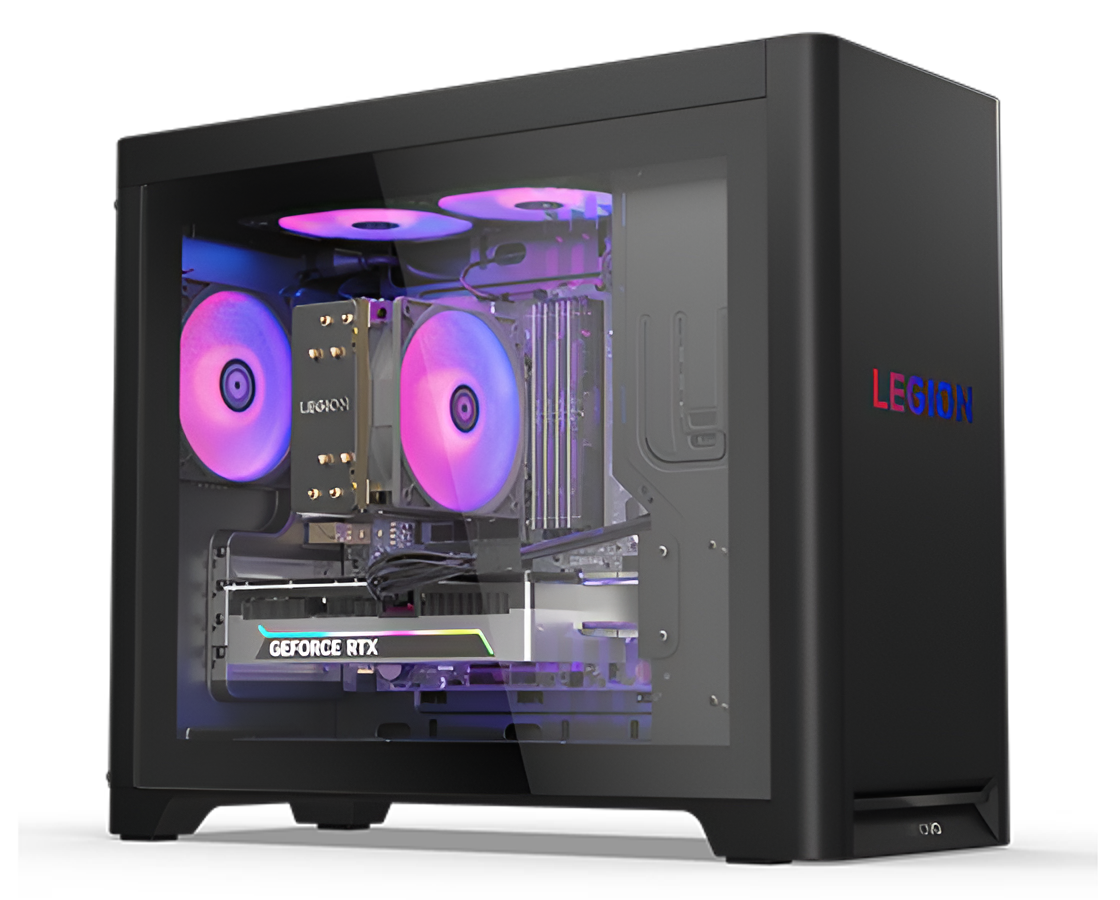
The quest for a lightning-fast gaming desktop starts and ends with storage. Many gamers focus solely on the graphics card or the processor. They forget that the hard drive acts as the gateway for every single texture and level. A slow drive creates a bottleneck that ruins the experience. You want your gaming desktop to feel snappy and responsive from the moment you hit the power button.
This guide breaks down nine specific storage configurations to transform your machine. We look at modern hardware and clever software tricks. These setups ensure your games load before you can even grab a snack. High performance is not just about raw power. It is about how quickly your system accesses data. Let us dive into these game-changing setups.
1. Embrace the Speed of NVMe Gen5
Traditional hard drives feel like ancient relics compared to the newest tech. The NVMe Gen5 standard represents the current peak of storage performance. The drives connect to your motherboard through their direct interface, which eliminates previous performance limitations. The best desktops for gaming offer optimized PCIe lane allocation and advanced thermal management, ensuring NVMe Gen5 drives sustain peak read/write speeds without throttling during large game loads.
Your system achieves read speeds that surpass 12,000 MB/s. The system loads massive open-world games within seconds. The transition from SATA to NVMe provides the most significant performance enhancement available to users.
2. Dedicate a Drive Just for Your OS
Mixing your operating system with your game library is a mistake. Windows constantly performs background tasks that eat up bandwidth. It writes logs and updates files while you play. This creates micro-stutters during intense gaming sessions. Use a smaller 500GB NVMe drive exclusively for your boot drive. This keeps the system snappy and clean. Your games can live on a separate high-speed drive. This physical separation ensures your game data has a clear path.
Your PC starts up faster and stays fast for years. Separating your files is smart, but combining drives can be even faster.
3. Harness the Power of RAID 0
RAID 0 binds two identical drives to present themselves as one. Both disks receive their own data at once. This effectively doubles your potential read and write speeds. It is a favorite trick for enthusiasts who want maximum benchmarks. You see significant improvements when moving large game folders. Just remember that this setup lacks data redundancy. If one drive fails, you lose the data on both. For a dedicated gaming machine ,the speed boost is often worth that risk.
4. Activate DirectStorage Technology
Microsoft created DirectStorage to change how games handle data. Traditionally, the CPU handles every data request from the SSD. This creates a middleman that slows things down. DirectStorage allows the GPU to pull data directly from the NVMe drive. This reduces CPU overhead significantly. You get much faster load times and more detailed environments. You need a compatible NVMe drive and a modern graphics card. Turning this on bridges the gap between consoles and PCs.
Future Proofing Your Library
More upcoming titles will require this feature for optimal play. It is the new standard for high-end gaming performance. The best desktops for gaming combine DirectStorage support with high-speed NVMe storage to deliver smoother, faster in-game asset streaming.
5. Utilize Large RAM Caches
Your system RAM is much faster than any SSD on the market. You can use software to set aside a portion of RAM as a cache. This software stores frequently accessed game files in your memory. When the game needs that data, it grabs it from the RAM instantly. This results in zero-latency data retrieval during gameplay.
Instant Data Access
Burst times cause latency variations in competitive shooters, where every millisecond counts towards winning.
It turns your excess memory into a high-speed storage buffer.
6. The Precision of StoreMI
AMD offers a unique tool called StoreMI for its motherboards. It combines the speed of an SSD with the capacity of a mechanical drive. The software learns which games you play the most. It automatically moves those files to the faster drive. You get the huge capacity of a cheap 8TB hard drive. You also get the snappy performance of a premium SSD. It is the perfect setup for gamers with massive libraries. You never have to manually manage where your games are installed. It gives you gaming desktop intelligent tiered storage that automatically keeps your most-played titles running at SSD-level speeds.
Smart Data Management
The system evolves based on your personal habits. This system guarantees that your preferred game titles will remain in their most efficient operational mode. The system delivers a consistent user experience throughout different types of hardware devices.
7. Install Dedicated Heatsinks
Heat is the primary enemy of high-performance NVMe drives. These small sticks get very hot during long gaming marathons. When they overheat, the controller slows down to protect itself. This is called thermal throttling, and it kills your frame rates. Many high-end motherboards come with built-in metal shields. If yours doesn’t,ot you should buy a third-party heatsink. Keeping the drive cool maintains peak speeds for hours. It prevents the sudden performance drops that cause lag.
Consistency Over Raw Peak
A cool drive performs consistently throughout your entire session. You avoid the frustration of a slowing PC mid-match.
Stable temperatures lead to a much longer lifespan for your hardware.
8. Prioritize M.2 CPU Lanes
Not all M.2 slots on your motherboard are equal. Some slots connect to the chipset while others connect to the CPU. The slots connected to the CPU offer the lowest possible latency. They have a direct line of communication to the brain of your PC. Always check your manual to find the primary M.2 slot. Plugging your main game drive into this slot provides a small but vital edge. It reduces the distance data travels inside the motherboard traces.
Cutting Out the Middleman
Using CPU lanes avoids the congestion of the motherboard chipset. This results in a cleaner and faster data signal.
9. Trim and Optimize Regularly
Solid State Drives require different maintenance than old hard drives. You should never “defragment” a modern SSD. Instead, you must ensure the TRIM command is active in your settings. This feature tells the drive which data blocks are no longer in use. It allows the drive to prepare for new data in advance. A well-maintained drive stays fast as it fills up over time. You should also leave about 10 percent of the drive empty. This “over-provisioning” helps the controller manage data more efficiently.
Keeping the Engine Clean
A tidy drive is a fast drive. Simple maintenance prevents the “slow-down” effect common in older PCs.
Regular optimization keeps your gaming desktop at its absolute peak.
Final Thoughts
Building a fast gaming desktop requires a smart approach to storage. You now have the knowledge to eliminate loading screens forever. Focus on high-speed NVMe hardware and smart software configurations. Keep your components cool and your data organized. These nine steps will make your PC feel like a brand-new machine. You deserve a gaming experience that is smooth and uninterrupted. Go ahead and tweak your settings to see the difference yourself. Your new high-speed setup is ready for action.
