

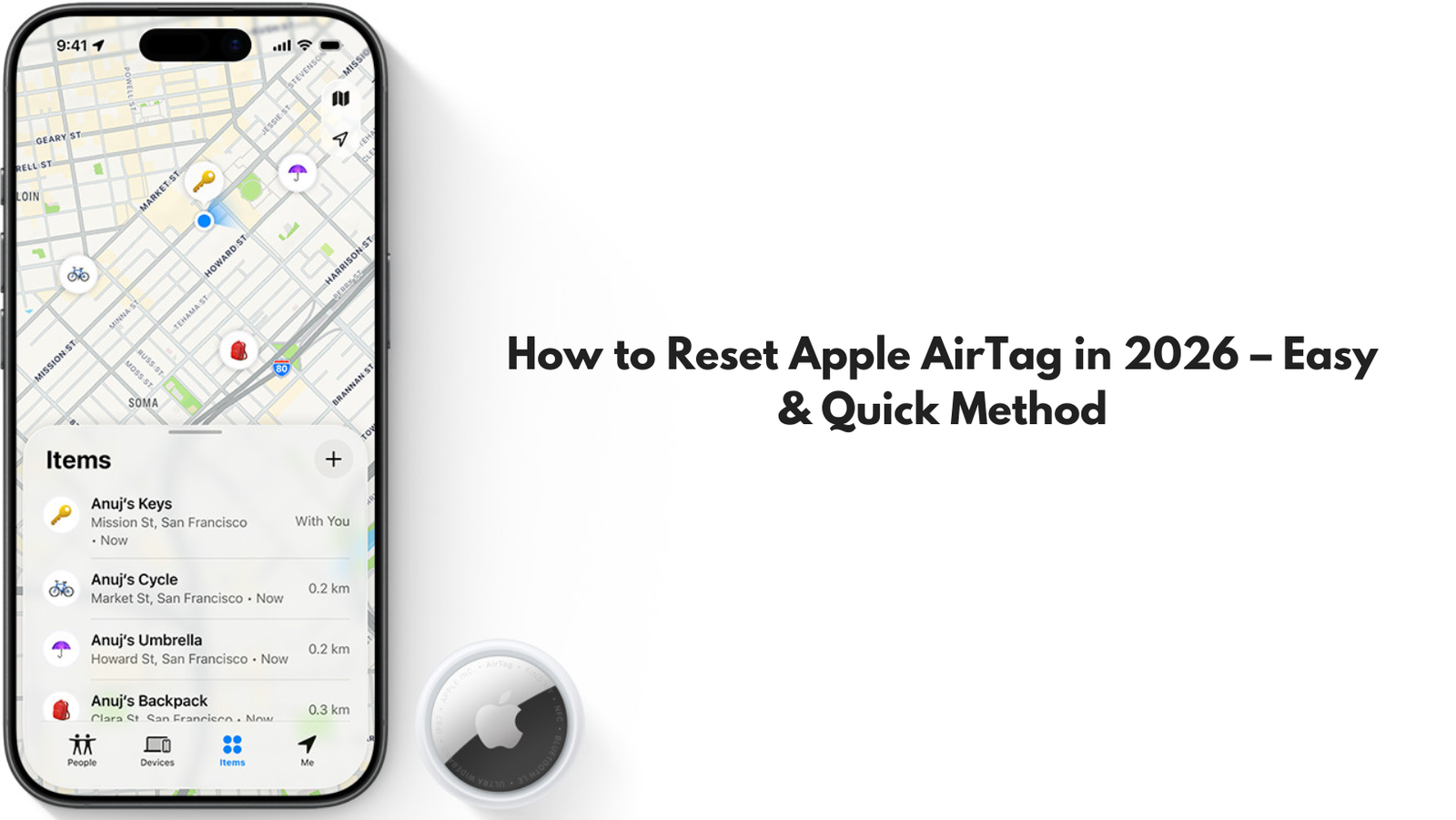
Apple has launched numerous interesting and unique features and devices that are also quite helpful to people. One of the most useful features that has been provided to Apple is the Find My app, which allows people to keep track of all their Apple products. Through this application, you can easily monitor allyour devices, whether iPhone, iPad, or MacBook. Along with this, the feature is also provided with a simple, small, coin-sized tracker called AirTag, which allows you to find small devices that you generally lose.
You can simply slip an AirTag on your wallet, backpack, or anything else, like a keychain, and the AirTag will keep sending the location of this device to you. To set up your AirTag, you need to link the Apple ID; however, what if you wish to resell or lend the AirTag to someone? In this case, it becomes important for you to reset the Apple AirTag to ensure that it can be used without issues.
You can easily reset your AirTag using the Find My app on your device, or there is another mechanical way to reset your AirTag. The guide will tell you the instructions that you need to adhere to if you wish to learnhow to reset an AirTag to get an entirely fresh and new device.
Reset your Apple AirTag using the Find My app
- If you want to reset your AirTag using your iPhone, open the Find My app.
- Make sure your AirTag and iPhone use the same Apple ID, and keep the AirTag close by.
- In the Find My app, tap the Items tab at the bottom.
- Pick the AirTag you want to reset, scroll down the list, and press “Remove Item.”
- You’ll get a pop-up warning that removing the AirTag lets someone else use it.
- Tap Remove at the bottom, then confirm by tapping Remove again.
That’s it. Your AirTag will disconnect from your iPhone and Apple ID. Now it’s ready for a new owner, or you can use these steps if your AirTag isn’t showing up in Find My. However, keep in mind that your iPhone needs to be within Bluetooth range of the AirTag for this to work.
Reset your Apple AirTag by removing the batteries
If you need to reset an AirTag but don’t have access to the original owner’s iPhone, you’ll have to complete the process of how to reset an Apple AirTag manually.
- Press down on the AirTag’s stainless steel cover and twist it counterclockwise.
- Once it comes loose, take off the cover and set it aside, and pop out the CR2032 battery.
- Now, put the battery back in and press until the AirTag makes a sound. That sound means the battery is connected. If you hear no sound, you might need a fresh battery.
- After the sound, take the battery out and repeat this, remove, replace, press for the sound, four more times.
- On the fifth press, you’ll hear a different sound, which means the AirTag is now reset to factory settings.
- Finish up by putting the cover back on. Line up the three tabs with the slots, press down, and twist clockwise until it’s secure.
Now your AirTag is ready for pairing with another iPhone. Refer to the website Datarecovee to learn how you can pair your Apple ID to your AirTag.
Read more blogs here: atechvibe.com
