

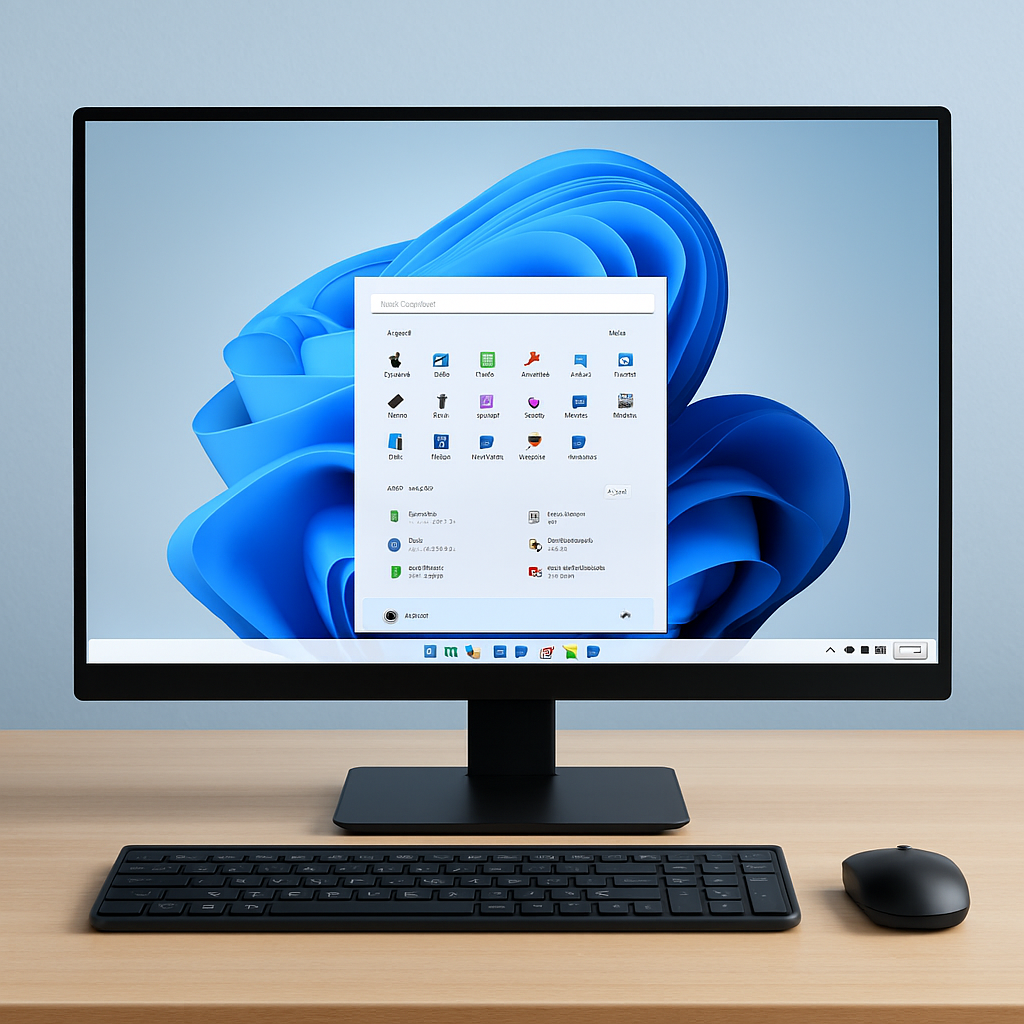
The decision to upgrade can breathe new life into your trusted machine, granting access to enhanced security, productivity features, and a modern interface. For residents and businesses in the area, tackling such a technical project can sometimes feel daunting. Should you encounter unexpected hardware hurdles or prefer a guaranteed, professional setup, expert laptop repair and technical upgrade services in Sydney are available to handle the entire process seamlessly, from diagnosis to final optimization, ensuring your device meets the new standard.
Similarly, a successful upgrade relies on a fully functional display to interact with the new operating system. Prior to beginning the installation, it’s wise to inspect your screen for any issues. A cracked, flickering, or dim display can severely hinder the process. Seeking a professional diagnosis and repair for a laptop screen in Sydney can resolve these physical problems first, providing a clear visual pathway for a hassle-free Windows 11 experience.
Understanding Windows 11 System Requirements: The First Crucial Step
Before downloading any files, you must determine if your PC can officially run Windows 11. Microsoft has enforced stricter hardware requirements compared to Windows 10, focusing on modern security standards.
The Non-Negotiable Hard Requirements
Your PC must meet these core benchmarks to proceed with a standard upgrade:
- Processor (CPU): A 64-bit CPU with at least 2 cores, running at 1 GHz or faster. It must be from Intel’s 8th Gen or newer, AMD Ryzen 2000 series or newer, or a qualifying Qualcomm Snapdragon chip. This is often the biggest hurdle for older PCs.
- RAM: 4 GB of memory is the absolute minimum, but 8 GB is strongly recommended for smooth performance.
- Storage: A minimum of 64 GB of free space on your system drive (SSD or HDD).
- System Firmware: Your motherboard must support UEFI and Secure Boot. This is a modern replacement for the old BIOS.
- Trusted Platform Module (TPM): Version 2.0 must be present and enabled on your motherboard. This is a dedicated security chip (or firmware-based) that is crucial for Windows 11’s security features.
- Graphics Card: Must be compatible with DirectX 12 or later with a WDDM 2.0 driver.
- Display: A high-definition (720p) screen larger than 9 inches.
How to Officially Check Your PC’s Compatibility?
The easiest way to check is to use Microsoft’s official PC Health Check app. Download and run it—it will quickly tell you if your device meets the requirements and, if not, which components are the problem.
For a more detailed analysis, especially for the technical TPM and Secure Boot requirements, you can use the open-source WhyNotWin11 tool, which provides a clear, component-by-component breakdown.
Pre-Upgrade Preparation: Safeguarding Your Data and System
A smooth upgrade is preceded by thorough preparation. This phase is critical to prevent data loss and ensure you have a fallback option.
Creating a Complete Backup of Your Personal Data
Never skip this step. Assume something could go wrong.
- Use External Storage or Cloud: Copy all essential files—documents, photos, videos, music, and downloads—to an external hard drive, USB stick, or a cloud service like OneDrive, Google Drive, or Dropbox.
- Export Application Data: Remember to back up data from specific applications like email clients, browser bookmarks, and project files for software like Photoshop or CAD programs.
Ensuring a Smooth Rollback Option
Create a full system image or ensure your Windows 10 activation is linked to your Microsoft account.
- Create a System Image: Windows has a built-in “Backup and Restore” tool that can create a complete image of your entire drive. This allows you to restore your exact Windows 10 system if needed.
- Link Your Windows License: Ensure your current Windows 10 digital license is linked to your Microsoft account. This significantly simplifies reactivation after the upgrade. Go to Settings > Update & Security > Activation to check.
Updating Drivers and Current Windows 10
A stable starting point is key.
- Update Everything: Go to Settings > Update & Security > Windows Update and install all available updates for Windows 10.
- Update Drivers: Visit your PC or motherboard manufacturer’s website and download the latest drivers for your chipset, graphics, audio, and network adapters. Installing these before the upgrade can prevent conflicts.
Navigating the Upgrade Paths: Clean Install vs. In-Place Upgrade
You have two primary paths to Windows 11. Your choice depends on your desire for a fresh start versus preserving your current setup.
The In-Place Upgrade: Preserving Your Files and Apps
This is the simpler, official method for most users.
- Process: It works just like a major Windows 10 update. You run the Windows 11 Installation Assistant from Microsoft’s website, and it upgrades your PC while keeping your personal files, most applications, and settings intact.
- Best For: Users who want a straightforward path and do not want to reinstall programs or reconfigure settings. It’s ideal if your current Windows 10 installation is stable and uncluttered.
The Clean Install: A Fresh, Performance-Boosting Start
This involves wiping your system drive and installing Windows 11 from scratch.
- Process: You use the Microsoft Media Creation Tool to create a bootable USB installation drive. You then boot from this USB, delete your old partitions during setup, and install a brand-new copy of Windows 11.
- Benefits: It removes all old files, junk, registry errors, and potential malware. This results in the fastest, most stable, and most secure performance possible—like having a brand-new PC.
- Best For: Users with older systems where every bit of performance counts, or those whose current Windows 10 installation is slow or problematic. The trade-off is that you must manually reinstall all your applications and restore your personal files from your backup.
Step-by-Step Installation Guide
Let’s walk through the most common method: the in-place upgrade using the Installation Assistant.
- Download the Official Tool: Visit the official Microsoft Windows 11 download page and select “Download Now” under the Windows 11 Installation Assistant section.
- Run the Tool: Open the downloaded file. It will check for compatibility, download Windows 11, and begin the installation.
- Accept Licenses: Review and accept the Microsoft license terms.
- Choose What to Keep: The tool will typically default to keeping your personal files and apps. Verify this is selected.
- Install and Wait: The process will run through several stages—downloading, installing, and rebooting multiple times. Your PC will restart several times; do not interrupt the power.
- Out-of-Box Experience (OOBE): After the final reboot, you’ll be guided through a few setup screens to configure your region, keyboard, privacy settings, and user account.
Post-Installation Optimization for Older Hardware
After installation, a few tweaks can significantly enhance performance on older hardware.
Essential Driver Updates and Windows Updates
Immediately check for drivers and system updates.
- Head to Settings > Windows Update and click “Check for updates.” Install all critical and optional updates.
- For graphics performance, visit the NVIDIA, AMD, or Intel website to get the latest graphics drivers, which often include performance improvements for new OS versions.
Performance Tweaks for Enhanced Speed
Fine-tune settings to reduce system load.
- Adjust for Best Performance: Right-click This PC > Properties > Advanced system settings > Settings (under Performance). Choose “Adjust for best performance” or manually disable heavy visual effects like animations and transparency.
- Manage Startup Apps: Go to Settings > Apps > Startup and disable any unnecessary applications from launching at boot.
- Review Background Apps: In Settings > Privacy > Background apps, turn off background activity for apps you don’t need running constantly.
Troubleshooting Common Upgrade Hurdles
Even with preparation, you might encounter issues. Here are common fixes.
“This PC Can’t Run Windows 11” Error
If your PC fails the compatibility check due to TPM or Secure Boot:
- Enable TPM/Secure Boot: Enter your UEFI/BIOS settings during boot (usually by pressing F2, Del, or F10). Navigate to security settings and enable TPM/PTT and Secure Boot. Save and exit.
- Registry Bypass (At Your Own Risk): For very old PCs that meet the CPU/RAM requirements but lack TPM 2.0, there are unofficial registry modification methods to bypass the check. This is not supported by Microsoft and may affect future updates and security. Only consider this if you understand the risks and your PC is for light, non-critical use.
Installation Stuck or Failing
If the installation freezes or fails:
- Check Storage Space: Ensure you have more than 64GB free. Clean temporary files using Disk Cleanup.
- Disconnect Peripherals: Unplug unnecessary USB devices, external drives, printers, or dongles that might cause conflicts during installation.
- Use the Media Creation Tool: If the Installation Assistant fails, try creating a bootable USB with the Media Creation Tool and running setup.exe from within Windows 10.
Conclusion: Embracing the Modern Computing Era
Successfully upgrading an old PC to Windows 11 is a rewarding project that extends the useful life of your hardware, providing a more secure and efficient computing environment. By meticulously following the steps of preparation, choosing the right installation path, and applying post-upgrade optimizations, you can achieve a smooth transition. This process not only enhances your machine’s capabilities but also ensures you stay current with the latest software developments and security protocols.
For those who prefer a guaranteed, hassle-free experience or encounter complex hardware compatibility issues, professional assistance is readily available. Specialists in comprehensive PC and laptop technical services in Sydney, such as the team at Computer Repair Sydney, can manage the entire upgrade process. Beyond operating system installations, they offer a full suite of solutions including data recovery, virus removal, hardware diagnostics, and performance tuning to keep all your devices, old and new, running at their absolute best.
