

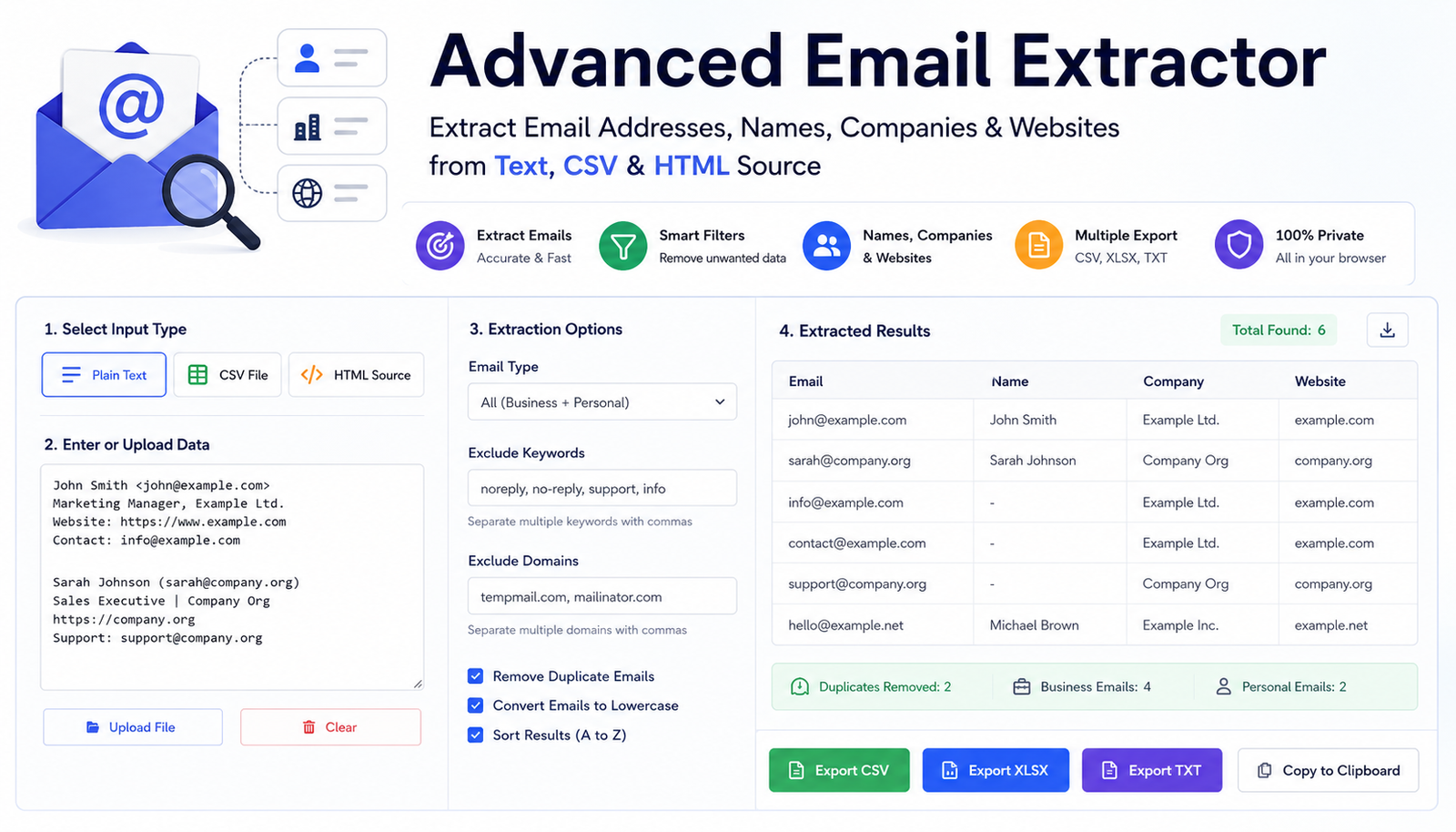
Finding email addresses inside a short paragraph is easy. Finding hundreds of useful contacts inside CSV files, HTML source code, exported lists, or large blocks of text is a different task.
The problem is rarely limited to finding the @ symbol. You may also need to remove duplicate addresses, separate business emails from personal accounts, exclude unwanted domains, remove addresses such as noreply@, and keep useful details such as names, companies, and websites.
An Advanced Email Extractor can handle these tasks in one workflow.
The Advanced Email Extractor accepts plain text, CSV data, and HTML source. It can extract email addresses and preserve related contact details when the source contains them. The tool also provides filtering, duplicate removal, sorting, statistics, and multiple export options.
This guide explains how advanced email extraction works, how it differs from basic email extraction, and how to turn messy source data into a structured contact list.
What Is an Advanced Email Extractor?
An Advanced Email Extractor is a tool that finds email addresses inside source content and organizes the results for further use.
A basic extractor may return a list like this:
john@example.comsarah@company.comsupport@company.comjohn@example.comThat output still needs work. It contains a duplicate address and may contain an address that is not useful for your task.
An advanced extraction process can produce structured results such as:
Name: John SmithEmail: john@example.comCompany: ExampleWebsite: example.comThe exact information available depends on the source data. An extractor cannot reliably create missing contact details from nothing. If names, company names, or websites exist in structured CSV or HTML content, the tool can preserve or associate that information with the extracted address.
Why Basic Email Extraction Is Often Not Enough
Suppose you have a file containing 2,000 lines of contact information.
A basic email pattern can find addresses, but you may still have to:
- Remove duplicates.
- Convert inconsistent letter case.
- Remove unwanted domains.
- exclude generic inboxes.
- Separate personal and business email addresses.
- Match addresses with names.
- Organize the results into columns.
- Export the final list.
The extraction itself is only one part of the work.
For example, a raw result might contain:
John@Example.comjohn@example.comsupport@example.comnoreply@example.comsarah@gmail.comalex@company.orgDepending on your purpose, you may want to normalize case, remove duplicates, exclude noreply, and keep only business addresses.
The useful result could then become:
john@example.comalex@company.orgThe rules depend on your project. A recruiter, researcher, and sales team may each need a different result from the same source file.
What Data Can the Advanced Email Extractor Process?
The tool supports three main input modes: plain text, CSV, and HTML source. It also supports direct input and compatible file uploads.
Each format has a different use case.
Extract Email Addresses From Plain Text
Plain text is the simplest input format.
You may have content such as:
John Smith works at Example Ltd.Contact: john@example.comSarah JonesMarketing Managersarah@company.orgAn email extractor scans the content and identifies strings that match the expected email address format.
Plain text extraction is useful for:
- Copied contact lists.
- Text exports.
- Notes.
- Reports.
- Directory content.
- Email signatures.
- Plain text files.
- Mixed contact information.
The source does not need to contain one address per line. Addresses can appear inside sentences or larger text blocks.
Extract Emails From CSV Files
CSV files often contain more useful context than plain text.
Consider this data:
name,email,company,websiteJohn Smith,john@example.com,Example Ltd,example.comSarah Jones,sarah@company.org,Company Org,company.orgA useful CSV extraction process should preserve the relationship between the email and the other fields.
The Advanced Email Extractor checks for headers related to email, name, company, and website. If an obvious email column is unavailable, it can scan cells for addresses.
This is useful because exported files do not always use the same column names or layout.
A CRM export may use:
Contact NameWork EmailOrganizationCompany URLAnother file may use:
NameEmail AddressBusinessWebsiteCSV processing helps keep related contact data together instead of returning a flat list of addresses.
Extract Email Addresses From HTML Source
HTML extraction requires more than removing visible text.
A web page may contain an email address in a mailto: link:
<a href="mailto:john@example.com">John Smith</a>The visible page may show only the person’s name, while the address exists in the link.
The tool’s HTML mode checks mailto: links and can also scan text content for additional addresses. This helps when processing saved HTML from contact pages, staff directories, or similar sources.
Use HTML extraction only with content you are permitted to process. Respect applicable privacy rules, website terms, and outreach requirements.
How to Use the Advanced Email Extractor
The workflow depends on your source data, but the basic process is straightforward.
Open the Advanced Email Extractor tool and select the input format that matches your source.
You can then paste the source content or upload a supported text, CSV, or HTML file. Select the email type you need, configure exclusion filters, choose cleanup options, and run the extraction. The tool can export results as CSV, XLSX, or TXT, or copy them to the clipboard.
A practical workflow looks like this:
- Select Plain Text, CSV, or HTML Source.
- Paste the content or upload the source file.
- Choose all, business, or personal email addresses.
- Add unwanted keywords if needed.
- Add domains you want excluded.
- Choose duplicate removal and case options.
- Run the extraction.
- Review the results and statistics.
- Export the cleaned contact table.
Review the results before using them in another system.
Business Email vs Personal Email Extraction
One useful filtering option is separating business addresses from personal email accounts.
Examples of personal email domains may include addresses from common free email services. A business email often uses an organization’s own domain.
For example:
jane@gmail.commay be treated as a personal address, while:
jane@examplecompany.commay be treated as a business address.
The tool uses a known list of free email providers for this classification. This method is useful for filtering, but unusual personal domains can sometimes be classified as business addresses.
That limitation matters. Domain classification is a useful filter, but it should not be treated as proof of a person’s role or company relationship.
Remove Duplicate Email Addresses
Duplicates are common in merged files and copied data.
Consider this list:
john@example.comsarah@company.comjohn@example.comalex@example.orgsarah@company.comThere are five rows but only three unique addresses.
After duplicate removal:
john@example.comsarah@company.comalex@example.orgDuplicate removal helps prevent repeated records from entering your final export.
Case normalization can also matter.
These two addresses may need to be treated consistently:
John@Example.comjohn@example.comConverting extracted addresses to lowercase before deduplication provides a consistent output format.
The Advanced Email Extractor includes lowercase conversion, duplicate removal, and optional alphabetical sorting.
Filter Unwanted Email Addresses by Keyword
Not every email address found in source content is useful for every task.
A directory may contain:
john@company.comsarah@company.comsupport@company.comnoreply@company.cominfo@company.comIf your task requires individual contact addresses, you may want to exclude generic or automated inboxes.
Keyword filtering can remove addresses containing terms such as:
noreplysupportinfoThe correct filter list depends on your purpose.
For example, support@ may be irrelevant for a recruiting list but useful when creating a customer support directory. Do not apply the same exclusion rules to every project.
The tool allows keyword-based exclusion so you can define these rules before producing the final output.
Exclude Unwanted Domains
Sometimes you need to remove every email address from a particular domain.
Suppose your source contains:
john@company-a.comsarah@company-b.comalex@company-a.commaria@company-c.comIf you exclude:
company-a.comthe remaining result is:
sarah@company-b.commaria@company-c.comDomain exclusion is useful when cleaning internal records, removing test data, or applying project-specific source rules.
The tool also provides exclusion fields for companies and websites where relevant source data is available.
Extract Names, Companies, and Websites With Emails
A flat email list has limited context.
Compare this:
jane@example.comwith:
Jane Smithjane@example.comExample Ltdexample.comThe second record is easier to review and organize.
When structured source data includes names, company names, and websites, preserving those fields can reduce manual cleanup.
This is especially useful with CSV data, where columns already define the relationship between fields.
HTML can be less predictable. A name may appear near a mailto: link, but page structures vary. Review extracted associations before importing them into another system.
Export Email Extraction Results
A useful extractor should let you move results into the system where you need them.
The Advanced Email Extractor supports CSV, XLSX, TXT, and clipboard output.
Choose the format based on your next step.
CSV
CSV works well for:
- Spreadsheet import.
- Database preparation.
- CRM-compatible workflows.
- Data review.
- Simple contact tables.
XLSX
XLSX is useful when you want to open the results directly in spreadsheet software and keep structured columns.
TXT
TXT is suitable when you need a simple plain-text list.
Clipboard Copy
Clipboard output is useful for small results that you want to paste into another permitted workflow immediately.
Before importing any contact list, check the required column format of the destination system.
Does Email Extraction Verify That an Inbox Exists?
No. Email extraction and email verification are different tasks.
An extractor identifies text that matches an email address format and organizes the result.
For example:
person@example.commay have a valid format. That does not prove that the mailbox exists, accepts messages, or belongs to the person you expect.
The tool page also distinguishes format-based extraction from live mailbox verification.
This distinction is important when working with old exports or saved directory data.
A practical sequence may include extraction, cleanup, duplicate removal, manual review, and appropriate validation for your permitted use case.
Browser-Based Processing and Data Privacy
Contact lists may contain confidential business information. You should understand where your data is processed before uploading it to any tool.
According to the tool page, extraction, filtering, and export processing run locally with JavaScript in the browser, without sending the pasted or uploaded content to a server.
This design can be useful when working with internal files because the source content stays on the device during tool processing.
You should still follow your organization’s data handling requirements. Browser-based processing does not replace internal access controls, retention policies, or legal requirements.
Who Can Use an Advanced Email Extractor?
Different users can apply email extraction to different data preparation tasks.
Sales Teams
Sales teams may need to clean authorized CRM exports, event lists, or company contact data before review.
Useful tasks include:
- Removing duplicate addresses.
- Filtering generic inboxes.
- Separating business and personal domains.
- Preserving company information.
- Exporting structured results.
Recruiters
Recruiters may work with candidate files and permitted career directory data.
Structured extraction can help preserve names and contact information from CSV exports instead of manually copying each field.
Marketers
Marketing teams often need to clean existing first-party contact data before segmentation.
Email extraction can help organize addresses, remove duplicates, and separate domain types. Any subsequent messaging should follow applicable consent, privacy, and anti-spam requirements.
Researchers
Researchers may need to organize publicly available or authorized contact information from saved documents and structured files.
A clear source policy and review process are important when handling personal information.
Common Email Extraction Mistakes
Assuming Every Extracted Address Is Valid
A correctly formatted address may still be inactive or incorrect.
Extraction finds patterns. It does not prove mailbox availability.
Keeping Every Address
More records do not always mean a more useful result.
Automated inboxes, duplicates, test addresses, and irrelevant domains can reduce the quality of a contact table.
Use filters based on the actual purpose of your project.
Removing Generic Emails Without Reviewing the Use Case
An address such as support@company.com may be unwanted in one project and necessary in another.
Set filters based on your objective rather than copying a fixed exclusion list.
Losing Contact Context
If your source file contains names and company information, exporting only email addresses may discard useful structure.
Use structured output when the source supports it.
Treating Personal and Business Classification as Perfect
Domain-based classification has limits. An uncommon personal domain may look like a business domain.
Review important records before relying on automatic classification.
Ignoring Data Use Rules
Finding an email address does not automatically grant permission to use it for every purpose.
Follow applicable laws, consent requirements, platform rules, and organizational policies.
Advanced Email Extractor FAQs
Can the tool extract names with email addresses?
It can preserve names and related fields when they exist in supported structured source data. Results depend on the information available in the input.
Can it extract emails from CSV files?
Yes. The tool supports CSV input and can use relevant columns for email addresses and related contact fields.
Can it process HTML source?
Yes. HTML mode can process mailto: links and scan text content for email addresses.
Can I remove duplicate emails?
Yes. Duplicate removal is available, along with lowercase normalization and optional A to Z sorting.
Can I extract only business email addresses?
The tool provides filtering for all, business, or personal email types. The classification uses domain-based rules and a list of known free email providers.
Which export formats are available?
The tool supports CSV, XLSX, TXT, and clipboard copying.
Does the extractor verify email deliverability?
No. Extraction identifies addresses based on format and source content. It does not confirm that a mailbox can receive messages.
Turn Messy Contact Data Into a Structured List
An Advanced Email Extractor does more than collect strings containing email addresses. It can help organize supported source data, remove duplicates, apply filters, separate address types, and export cleaner results.
The best workflow starts with a clear goal. Choose the correct input format, define your filters, review the extracted table, and select the export format that fits your next permitted step.
If you have plain text, CSV data, or HTML source that needs structured processing, try the Advanced Email Extractor. Paste or upload your source, apply the relevant filters, review the results, and export the contact table in the format you need.
