Most people only think about backups after something goes wrong. The phone slips into water, gets stolen from a café table, or simply refuses to turn on one morning. In that moment, the real loss is not the device. It is the photos, contacts, chats and notes that were never saved anywhere else.
Learning how to back up your phone takes about fifteen minutes, and it protects years of memories and important information. This guide covers both iPhone and Android, explains what each backup method actually saves, and shows you how to make sure your backup will work when you need it.
What Needs Backing Up?
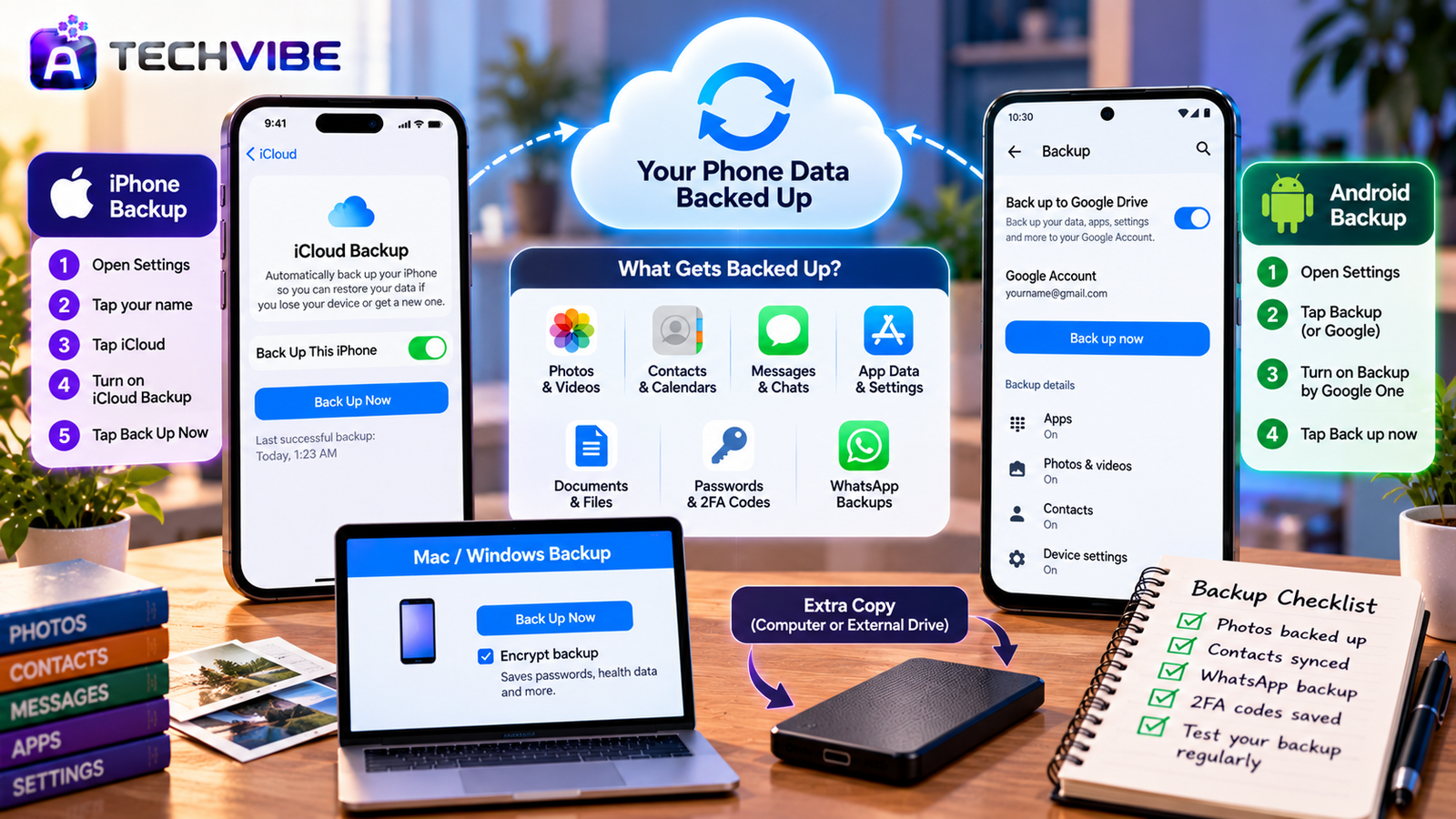
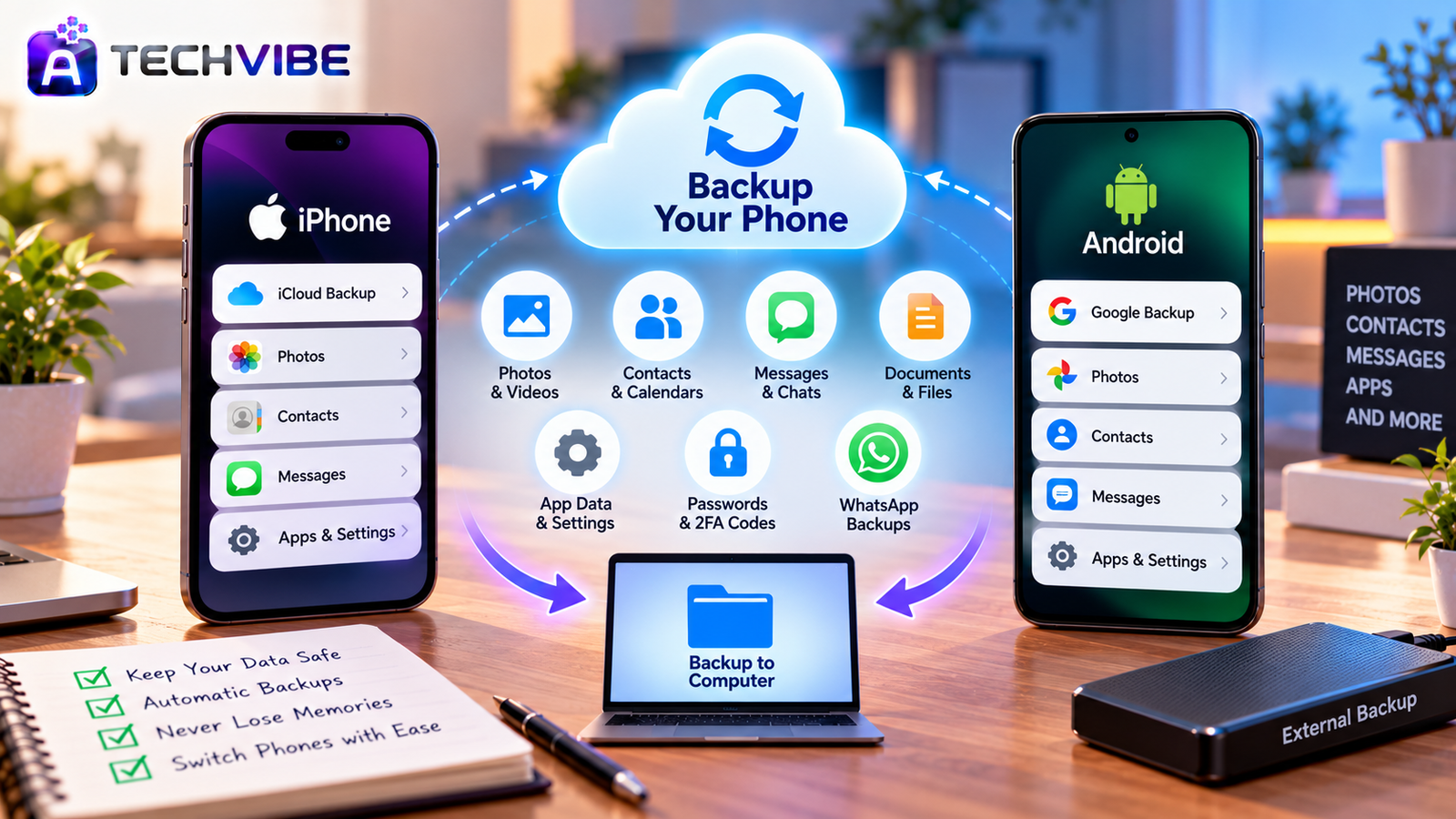
Before choosing a method, think about what matters most on your phone:
Photos and videos, usually the most precious and the largest files
Contacts and calendars
Messages and chat apps such as WhatsApp
App data and settings, like game progress or app preferences
Documents and downloads
Passwords and two-step login codes
Not every backup method saves all of these. That is why the best approach combines a few simple tools.
How to Back Up an iPhone
Option 1: iCloud Backup (Easiest)
iCloud can back up your iPhone automatically every night while it is charging, locked and connected to Wi-Fi.
To turn it on:
Open Settings and tap your name at the top.
Tap iCloud, then iCloud Backup.
Switch on Back Up This iPhone.
Tap Back Up Now to create your first backup immediately.
The free iCloud plan includes limited storage, which fills up quickly with photos. If you see a “not enough storage” message, you may need a paid iCloud+ plan or another place to store photos.
Option 2: Back Up to a Computer
A computer backup is a great second copy and does not depend on cloud storage.
On a Mac: Connect your iPhone, open Finder, select your iPhone in the sidebar and click Back Up Now.
On Windows: Use Apple’s Apple Devices app (or iTunes on older setups), select your iPhone and choose Back Up Now.
Tick the option to encrypt the local backup. This protects your data with a password and also saves extra information such as saved passwords and health data. Store that password somewhere safe, because you cannot restore an encrypted backup without it.
How to Back Up an Android Phone
Android menus vary by brand, but the main steps are similar.
Option 1: Google Backup
Open Settings.
Search for Backup (it is often under Google, System or Accounts and backup).
Turn on Backup by Google One (or Back up to Google Drive on some phones).
Tap Back up now.
This saves app data, call history, contacts, device settings and SMS messages to your Google account. Free Google storage is shared across Gmail, Drive and Photos, so check how much space you have.
Option 2: Your Phone Brand’s Backup Tool
Many manufacturers offer their own cloud or computer backup tools. These can save extra items, such as home screen layouts or brand-specific apps. They are useful as a second layer, especially if you plan to buy your next phone from the same brand.
Option 3: Copy Files to a Computer
Connect your phone with a USB cable, choose File transfer on the phone, and copy your photos, videos and documents to a folder on your computer. It is manual, but it is free and gives you a copy you fully control.
Back Up Your Photos Separately
Photos deserve special attention because they are irreplaceable and take up the most space.
iPhone users can turn on iCloud Photos under Settings > your name > iCloud > Photos.
Android and iPhone users can install Google Photos and turn on backup in its settings.
Photo sync services keep your library available across devices. Remember, though, that sync is not the same as a backup. If you delete a photo on one device, it may disappear everywhere after a short recovery period. That is why a second copy, on a computer or external drive, is still important.
Do Not Forget WhatsApp and Other Chats
Chat apps usually store their own backups separately from the phone backup.
For WhatsApp, open the app and go to Settings > Chats > Chat backup. Choose how often to back up (daily is best) and tap Back up. iPhone backups go to iCloud and Android backups go to Google Drive. You can also turn on end-to-end encrypted backup for extra privacy.
Check other messaging apps you use, as each one handles backups differently.
Protect Your Two-Step Login Codes
This step is often missed, and it can cause serious trouble. If you use an authenticator app for two-step login and lose your phone, you could be locked out of important accounts.
Turn on cloud backup inside your authenticator app if it offers it, save the recovery codes each service gives you, and store them somewhere safe. Two-step login is one of the best ways to protect your accounts, as we explain in why every business should use multi-factor authentication, but it needs a recovery plan.
Follow the 3-2-1 Rule
Professionals use a simple rule to make sure data survives almost any disaster:
Keep 3 copies of important data.
Store them on 2 different types of storage, such as cloud and a computer.
Keep 1 copy in a different location from your phone.
For most people, that means: the phone itself, a cloud backup, and a copy on a computer or external drive. If your computer is old or unreliable, our guide to finding quality laptops can help you choose one worth trusting with your files.
Check That Your Backup Actually Works
A backup you have never checked is only a hope. Every few months:
Look at the date of your last successful backup in settings.
Open your cloud photo library and confirm recent photos are there.
Open a few files on your computer copy to make sure they work.
Confirm WhatsApp shows a recent backup date.
If you ever switch phones, restoring from your backup is also the easiest way to move everything across. If an upgrade is on your mind, read what to know before upgrading your iPhone.
Common Backup Myths
“My photos are on Instagram, so they are backed up.” Social media compresses photos and is not a reliable backup.
“I have never lost a phone, so I do not need this.” Most people who lose data say exactly the same thing beforehand.
“Backups are only for tech-savvy people.” Modern phones make it a few taps, and automatic backups run on their own.
“Cloud storage is not safe.” Major providers use strong security. The real risk is weak passwords. Use a unique password and turn on two-step login for your cloud account.
Keep Your Backup Secure
Your backup holds your entire digital life, so protect it like your phone. Use a strong, unique password for your Apple or Google account, enable two-step login, and be careful with unknown apps that ask for full access to your files. Our article on the role of cyber security applications in detecting and preventing modern threats explains how security tools add another layer of protection.
Do It Today, Not Tomorrow
Phones are becoming smarter and hold more of our lives every year, as we explore in how AI smartphones are changing everyday mobile use. That makes regular backups more important than ever.
Set aside fifteen minutes today. Turn on automatic cloud backup, switch on photo backup, back up your chats and save your two-step recovery codes. Then make a computer copy once a month. If something ever happens to your phone, you will lose a device, not your memories.
For more simple, practical tech guides, explore the latest articles on AtechVibe.