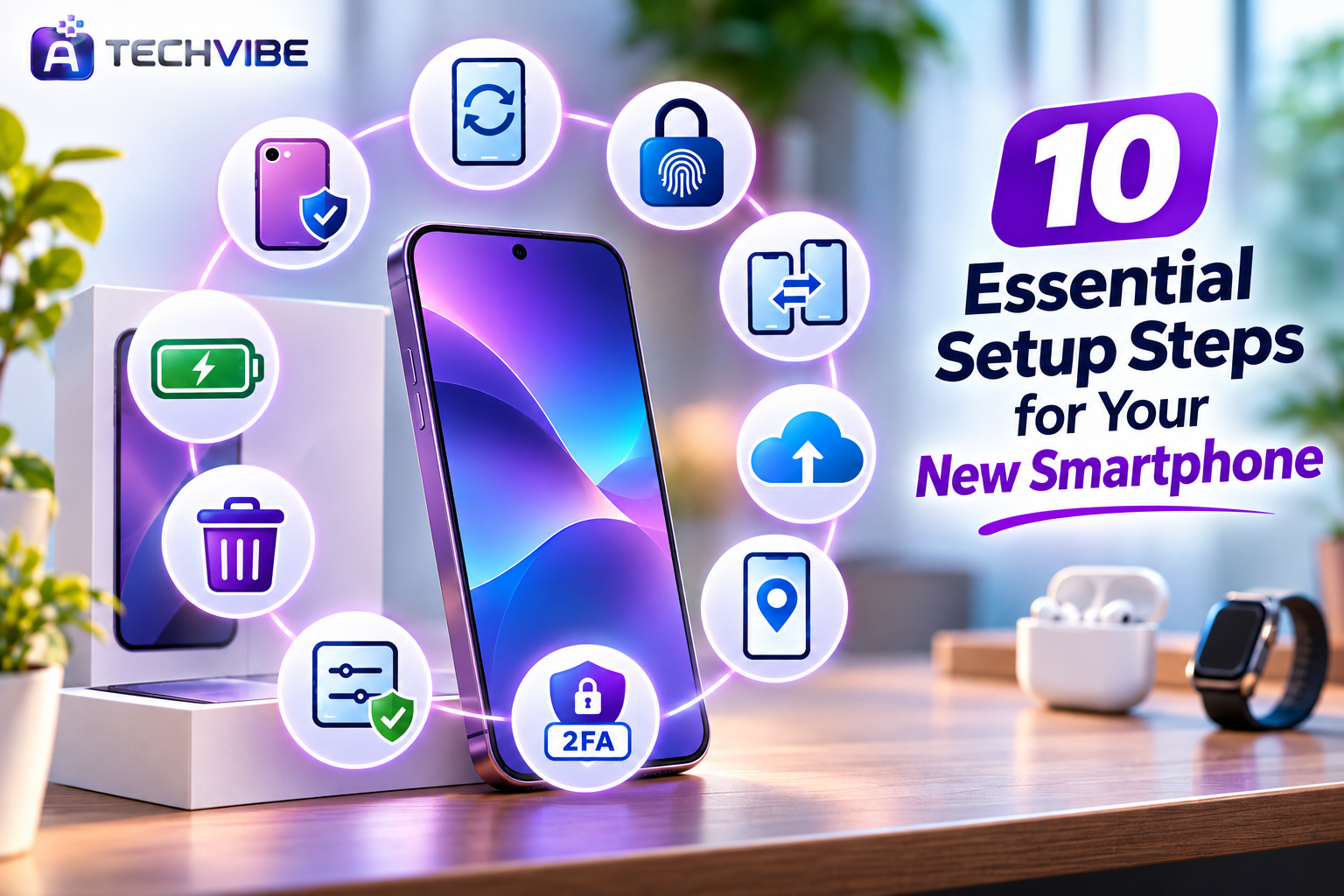
Unboxing a new smartphone is exciting. The screen is bright, the camera is sharper and everything feels fast. But before you dive into apps and games, spending thirty minutes on setup can protect your data, save battery and help you get far more out of the device.
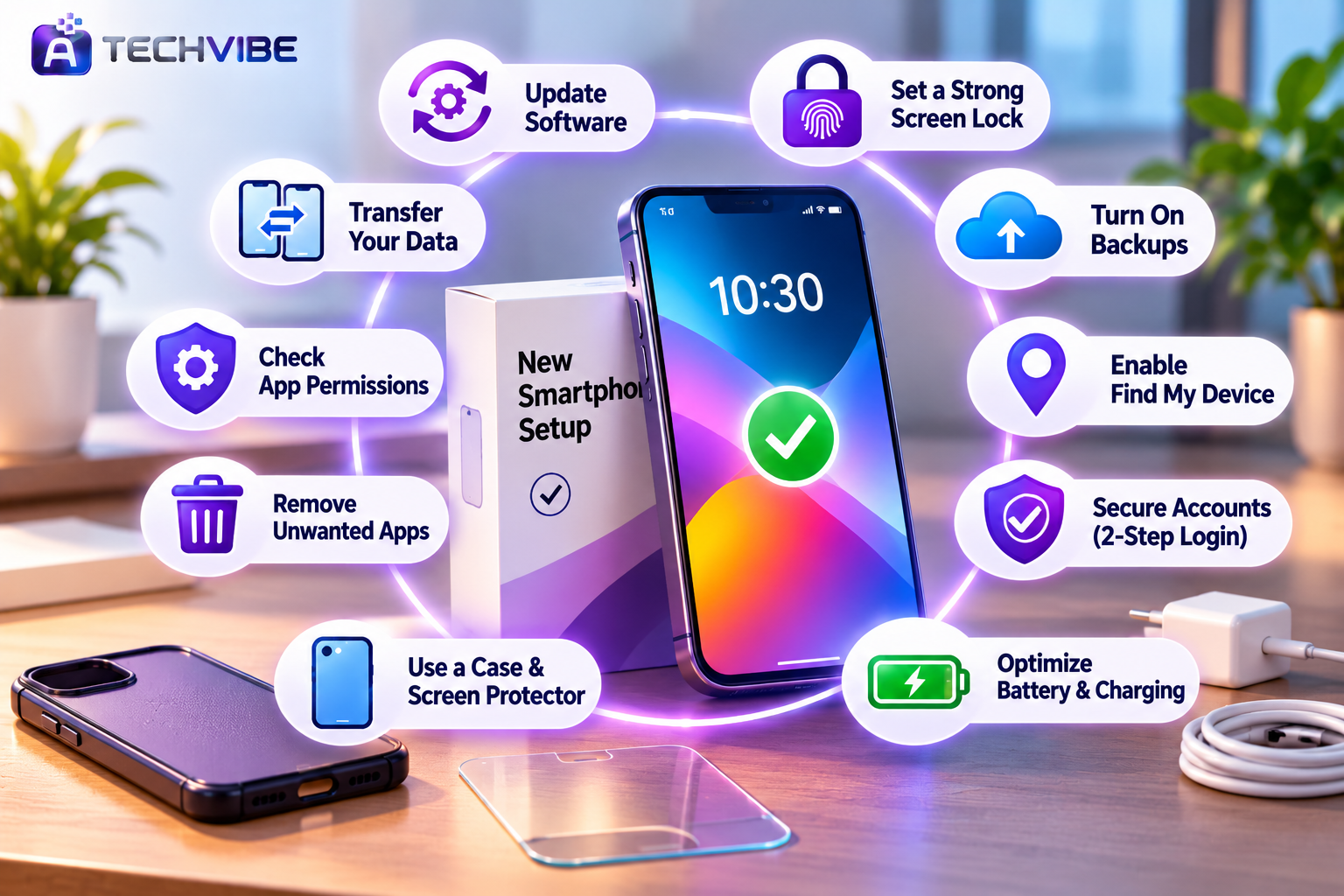
Here are ten things to do right after buying a new smartphone, whether it runs Android or iOS. Most take only a few minutes, and together they make a big difference.
1. Install the Latest Software Update
Phones often sit in warehouses and shops for weeks before they are sold. By the time you open the box, a newer software version is usually waiting.
Go to Settings > Software update (or Settings > General > Software Update on iPhone) and install anything available. Updates fix bugs, improve battery life and, most importantly, close security holes. Then turn on automatic updates so you never fall behind.
2. Set Up a Strong Screen Lock
Your phone holds your messages, photos, emails and often your bank apps. A strong lock screen is your first line of defence.
Use a six-digit PIN or a password rather than a simple pattern or four-digit code. Then add fingerprint or face unlock for convenience. Avoid obvious combinations like 123456 or your birth year.
3. Move Your Data the Easy Way
Both Android and iPhone offer built-in tools to transfer contacts, photos, messages and apps from your old device. Follow the on-screen prompts during setup, or use the official transfer app from your phone’s brand.
Before you wipe or sell your old phone, double-check that everything important has arrived on the new one, including chat history from messaging apps, which often needs its own backup and restore.
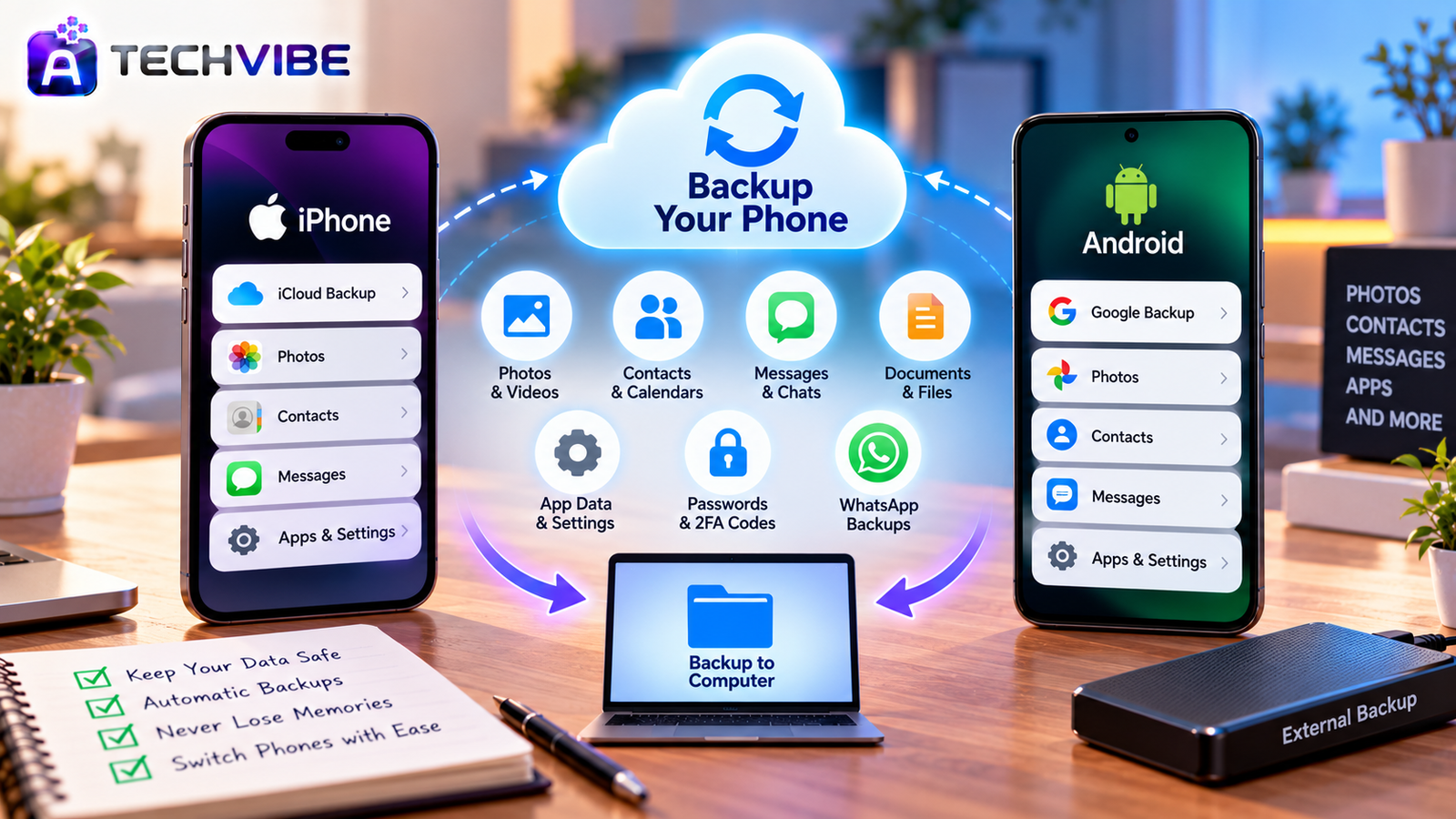
4. Turn On Automatic Backups
The best time to set up backups is before you need them. On iPhone, enable iCloud Backup and iCloud Photos. On Android, turn on Google backup and photo backup through Google Photos or your phone brand’s service.
Also check that WhatsApp or your main chat app is set to back up daily. If your phone is ever lost or damaged, you will lose a device, not your memories.
5. Enable Find My Device
Every new smartphone should be trackable. On iPhone, turn on Find My. On Android, make sure Find My Device is switched on in your Google settings.
These tools let you see your phone on a map, play a sound, lock it remotely or erase it if it is stolen. Test it once from another device so you know how it works before an emergency.
6. Secure Your Accounts With Two-Step Login
Your phone is now the key to many of your accounts. Make sure your Google account or Apple ID, email and banking apps all use two-step login.
If you use an authenticator app, set it up on the new phone and save your recovery codes somewhere safe. We explain why this matters in why every business should use multi-factor authentication, and the same advice applies to personal accounts.
7. Review App Permissions and Privacy Settings
Many apps ask for access to your location, camera, microphone, contacts and photos. Not all of them need it.
Open Settings > Privacy (or Security and privacy on many Android phones) and review each permission. Choose “Only while using the app” for location wherever possible. Turn off ad personalisation if you prefer fewer targeted ads, and only install apps from official app stores.
For an extra layer of protection, see how security tools help in the role of cybersecurity applications in detecting and preventing modern threats.
8. Remove or Disable Apps You Do Not Need
Many phones arrive with pre-installed apps, often called bloatware. They take up storage, send notifications and may run in the background.
Uninstall what you can. If an app cannot be removed, disable it or at least turn off its notifications and background activity. A cleaner phone feels faster and lasts longer on a charge.
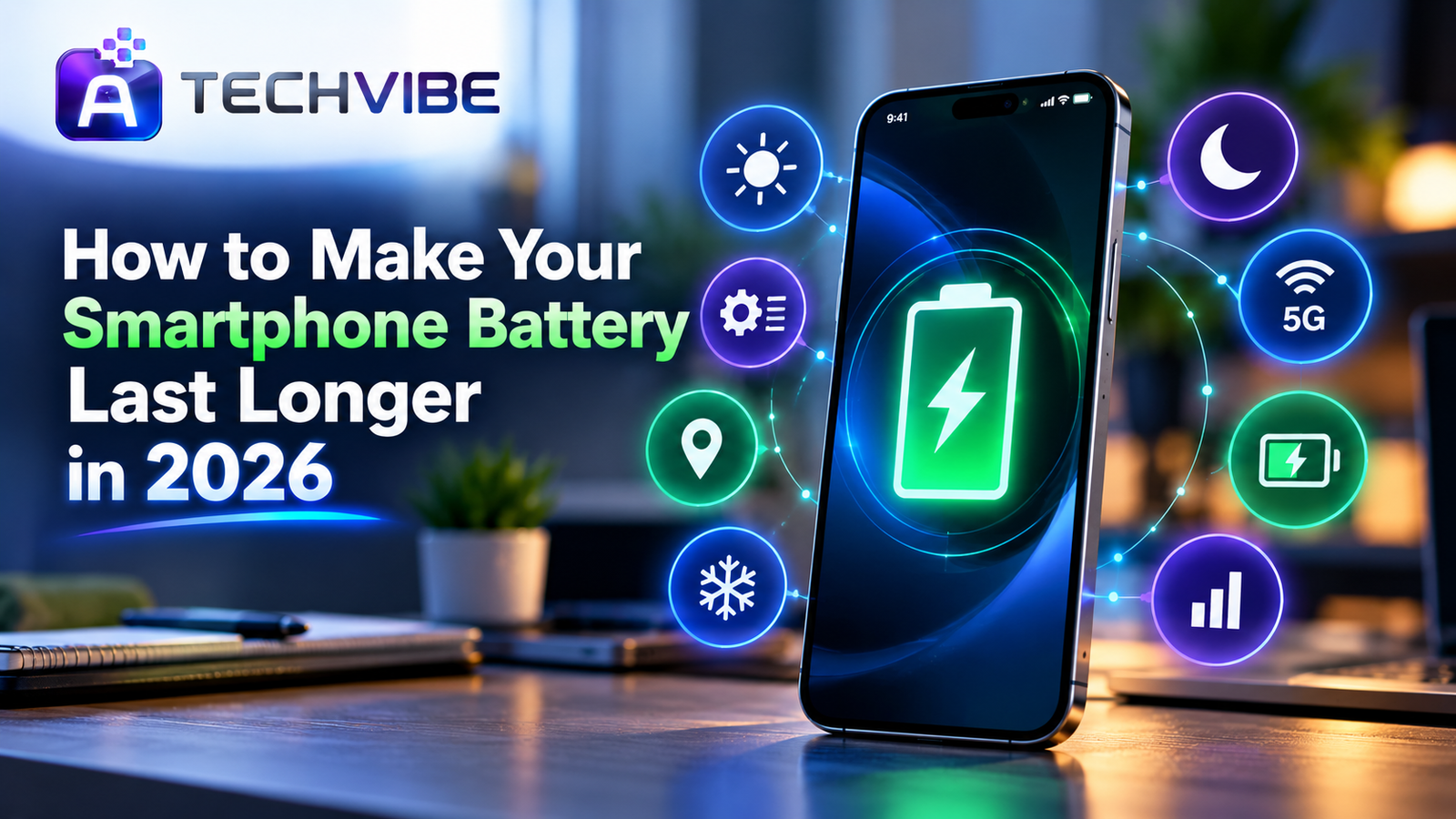
9. Set Up Battery and Charging Settings
A few simple settings help your new smartphone’s battery stay healthy for years.
Turn on adaptive or optimised charging, which slows charging overnight to reduce wear.
If your phone offers an option to limit charging to 80 percent, consider using it for daily charging.
Enable adaptive brightness and set a short screen timeout.
Use dark mode if your phone has an OLED screen.
Use a good-quality, certified charger and cable. If you charge in the car, our car mobile charger buying guide explains what to look for.
10. Protect It Physically
Repairs for modern phones can be expensive, especially screens and back glass. A good case and a tempered glass screen protector cost little and can save a lot.
Choose a case with raised edges around the screen and camera. If you buy an extended warranty or insurance, read what it covers and keep the receipt somewhere safe.
Bonus: Explore Your Phone’s Smart Features
Most new phones now come with built-in AI features, such as photo editing tools, live translation, call screening, smart summaries and voice assistants. Spend a few minutes exploring them in settings. You may find features that save real time every day. We explore this trend in how AI smartphones are changing mobile device use every day.
It is also worth setting up digital wellbeing or Screen Time tools. They show how long you spend on each app and let you set limits if you want healthier phone habits.
What to Do With Your Old Phone
Before selling, gifting or recycling your old device:
Make sure all your data is on the new phone.
Sign out of your Google account or Apple ID and turn off Find My.
Remove your SIM and memory card.
Perform a full factory reset.
Recycle it responsibly if you are not reusing it.
Skipping step 2 can leave the old phone locked to your account, making it unusable for the next owner.
Connect It to the Rest of Your Tech
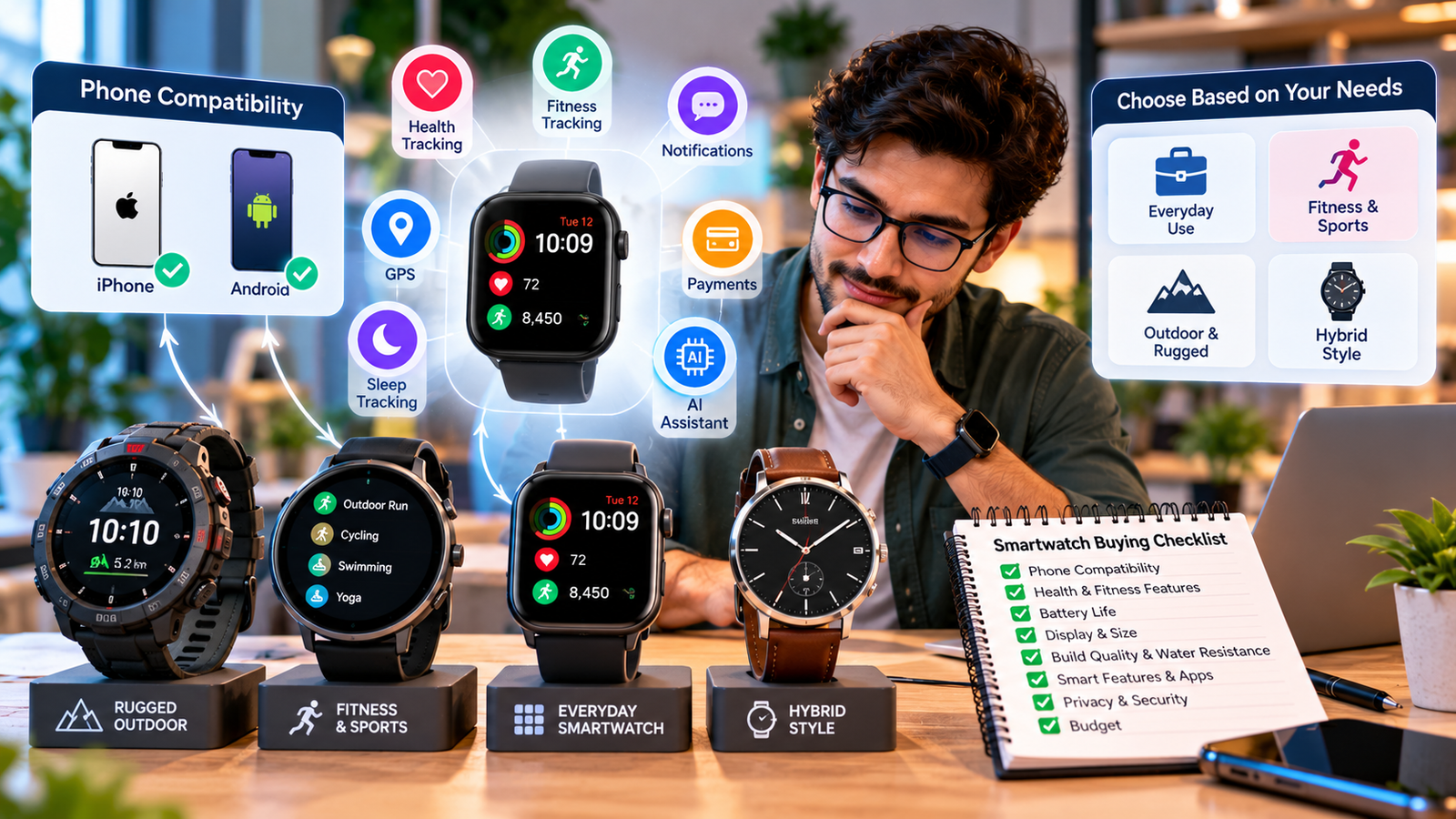
Your new smartphone is likely the remote control for much of your digital life, from smartwatches and earbuds to smart home devices. If you are building a connected setup, our guide to choosing the best smart home gadgets is a good next read. iPhone buyers may also find useful tips in what to know before your next big iPhone upgrade.
A Quick Setup Checklist
Software updated and auto-updates on
Strong PIN plus fingerprint or face unlock
Data transferred and checked
Cloud and chat backups turned on
Find My Device enabled and tested
Two-step login active on key accounts
App permissions reviewed
Unwanted apps removed or disabled
Battery settings optimised
Case and screen protector fitted
Tick these off, and your new smartphone will be safer, faster and ready for years of use. For more simple gadget guides, explore the latest articles on AtechVibe.